Step 1
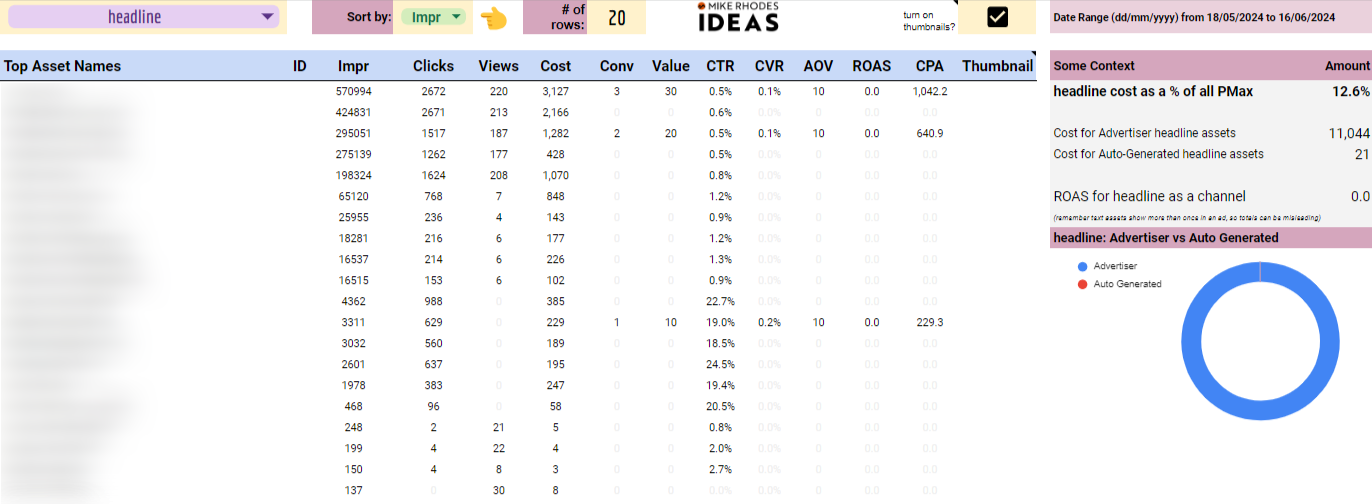
Get access to a PMAX script template. Our agency prefers the Paid version of the Mike Rhodes PMAX script, where you can see additional insights about how your performance max campaigns are doing and potentially use the PMAX Whisperer script (that provides AI-powered insights).
Step 2
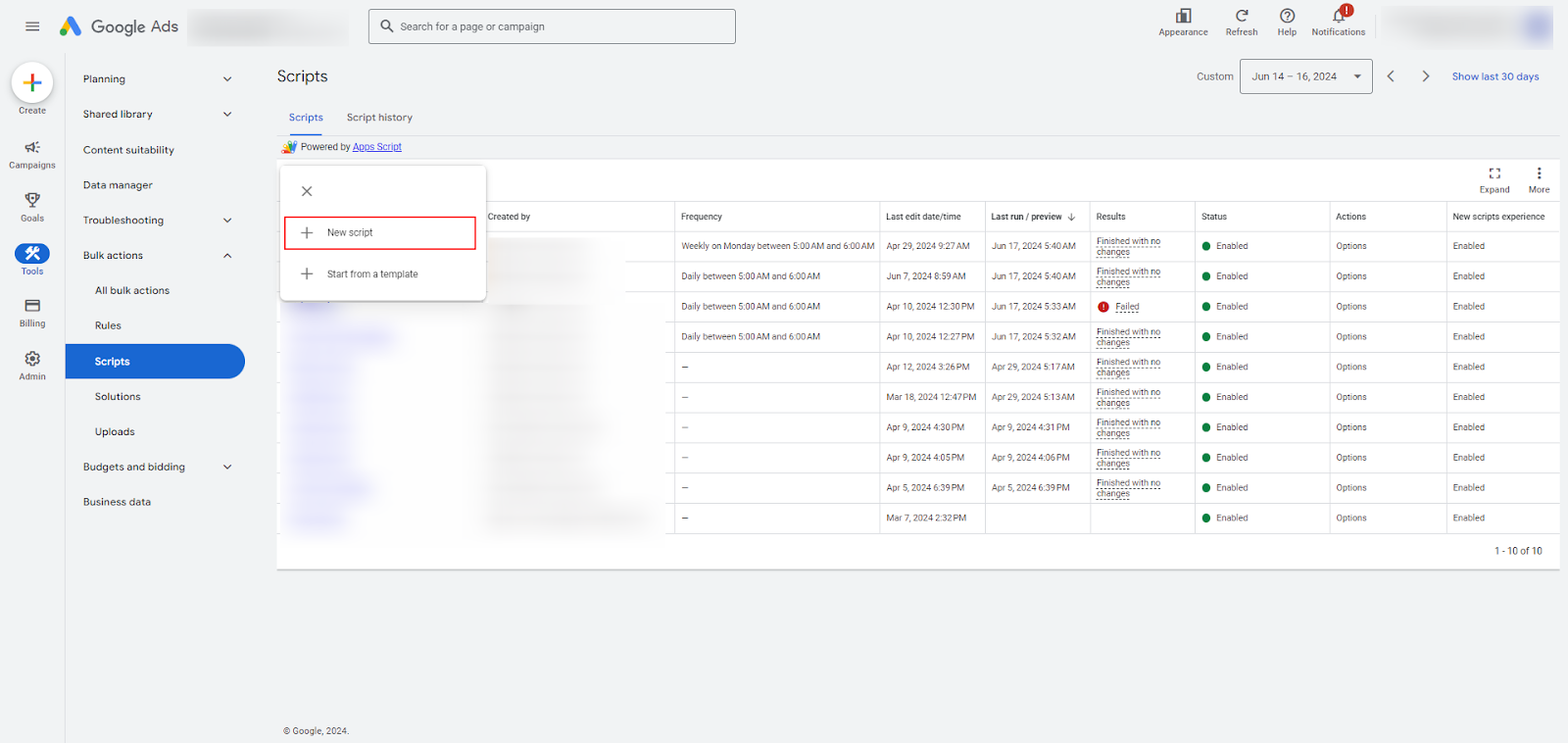
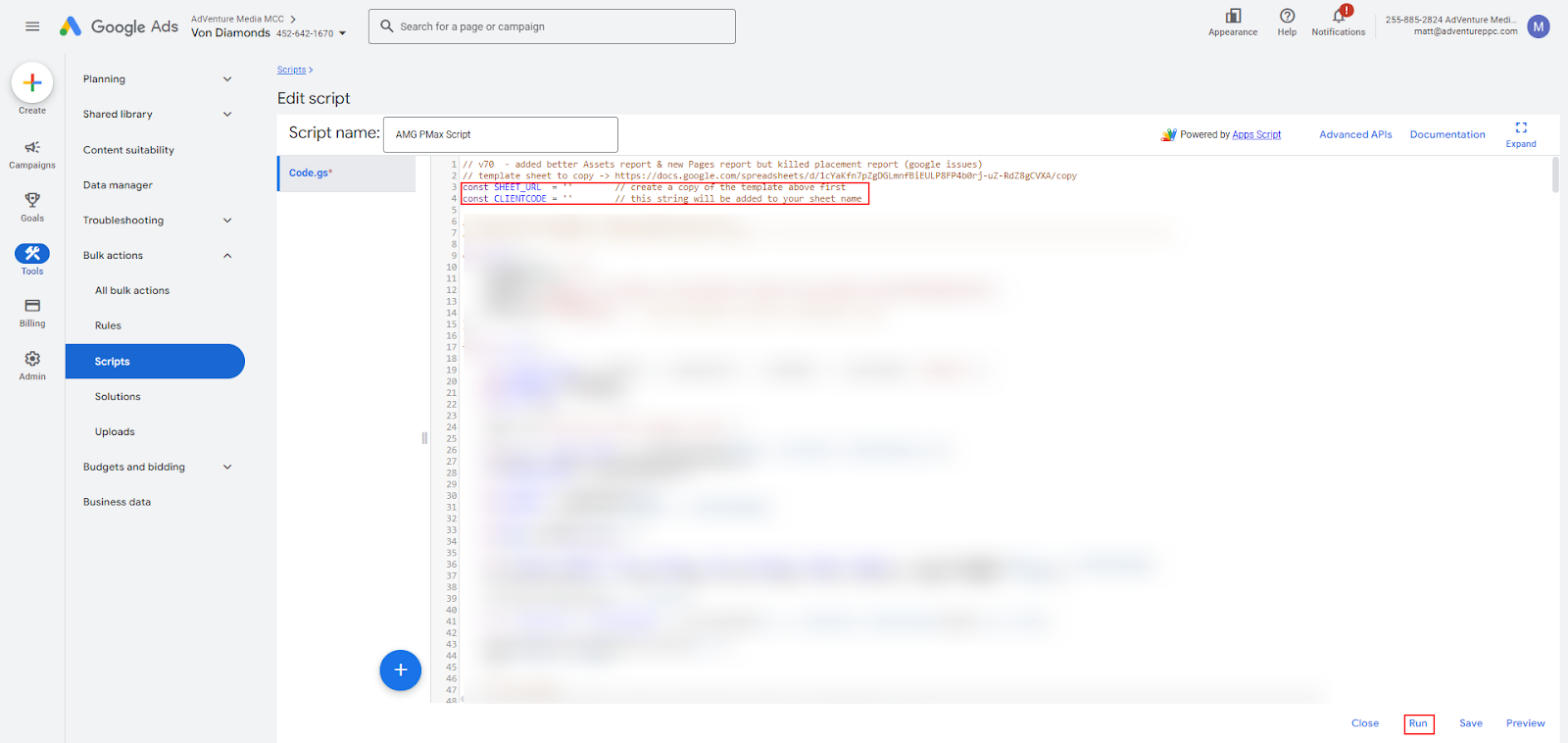
Open up your Google Ads account and click the tools icon.
Step 3
Under the tools icon, navigate to “Scripts” under bulk actions. From there, click the plus button and then choose “New Script.”
Step 4
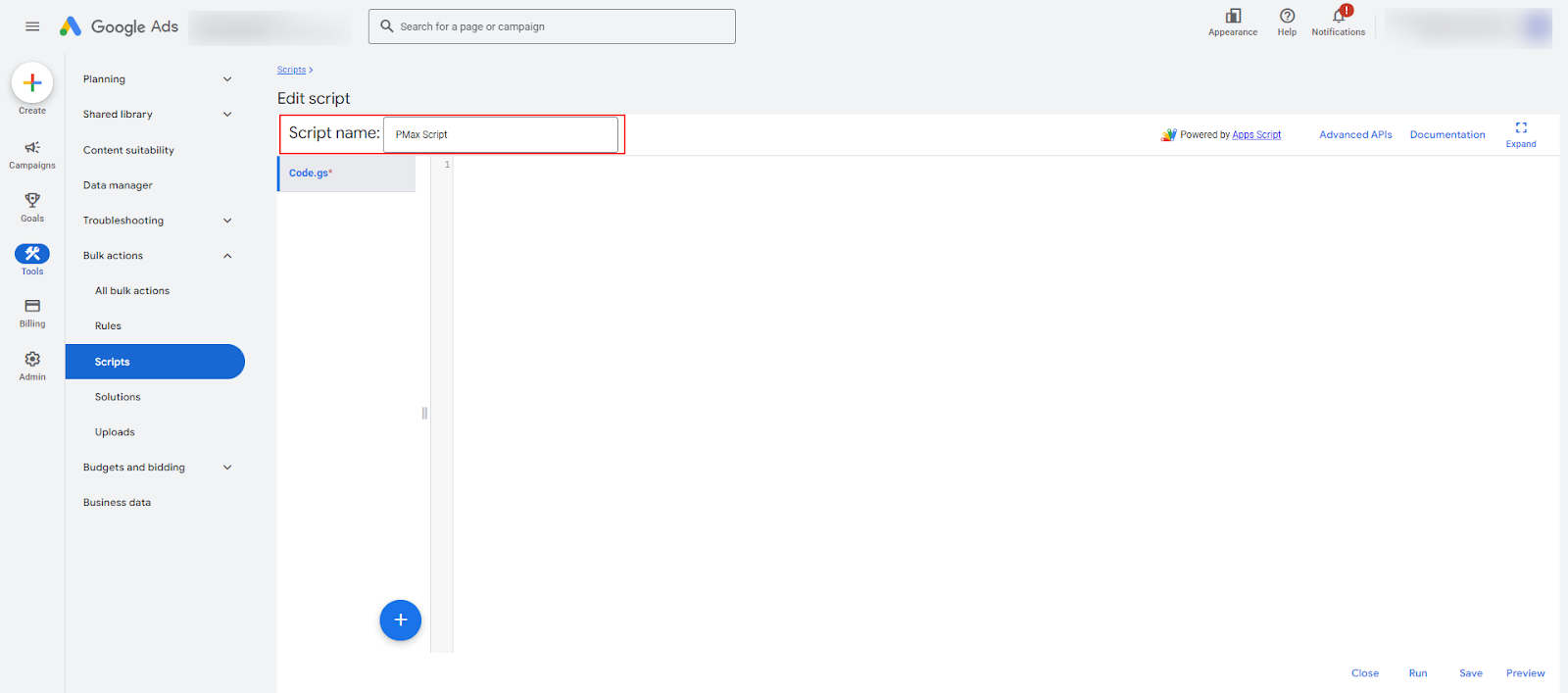
Save and name your script next to the script name box.
Step 5
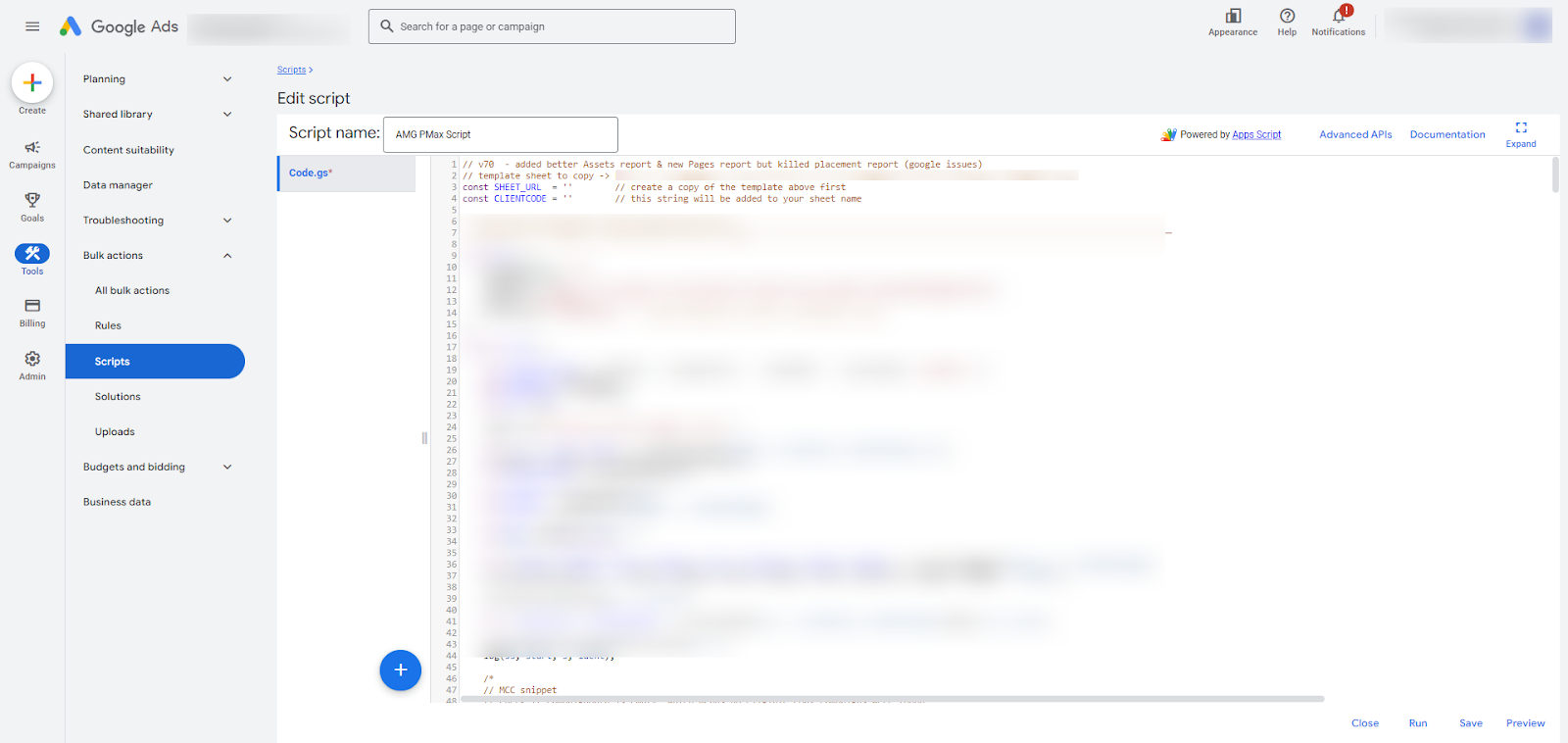
Delete the three lines of code in the field and paste the PMAX template code in the field.
Step 6
First, copy the Google Sheet URL you duplicated from the Script Template (from line 2) and paste it between the quotation marks in line 3. Then, enter the client or brand name between the quotation marks in line 4.
Step 7
Then press authorize and save. Note: Sometimes, you may need to authorize twice.
Step 8
Click run at the bottom of the screen.
Tips
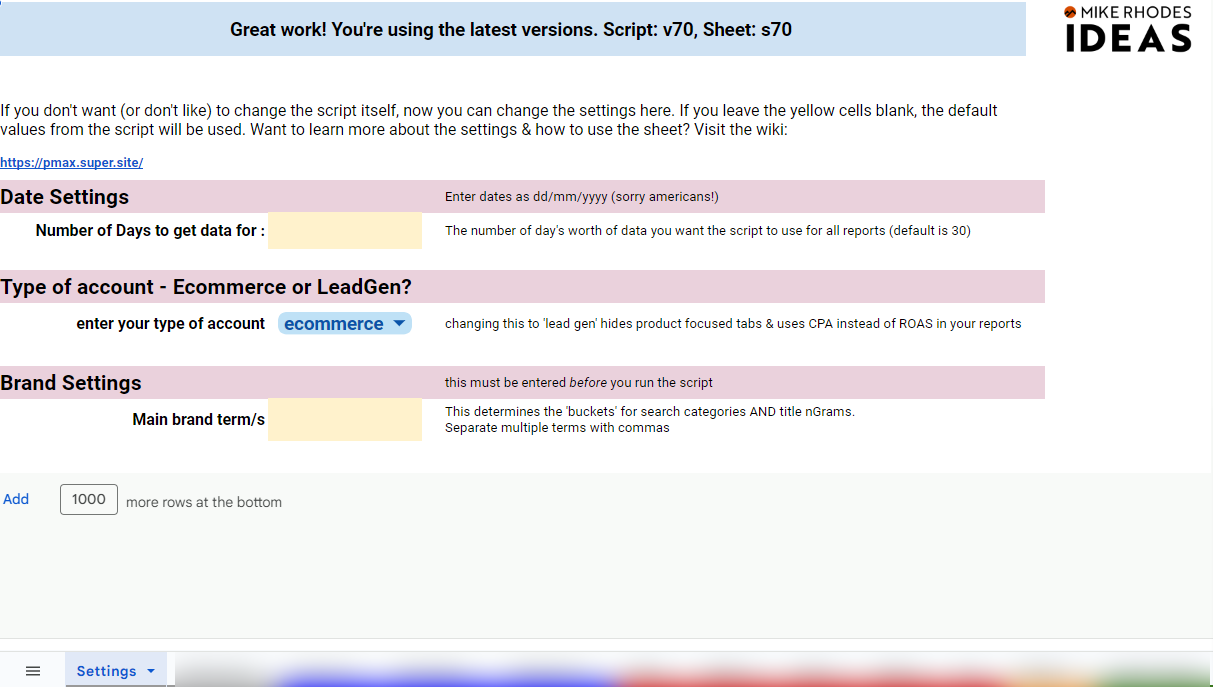
1. Sheet Settings: Ensure that the information on the “Settings” tab of the Sheet is accurate. Input the desired number of days back you want to collect data, client type (e-commerce vs. lead gen), and main brand terms.
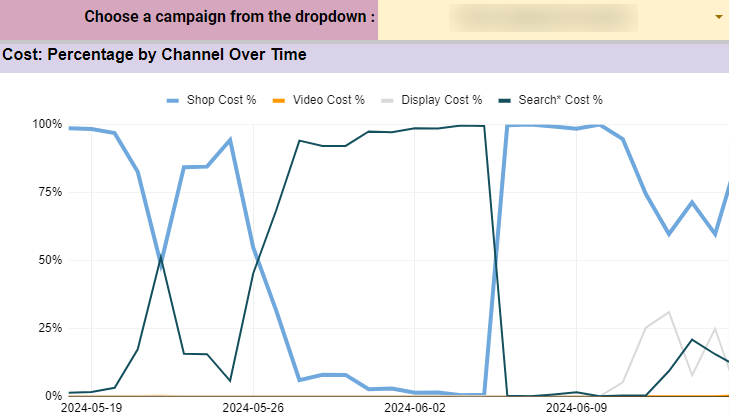
2. Placement split: See what percent of your PMAX spend each day goes toward different channels and what factors influence these placements.
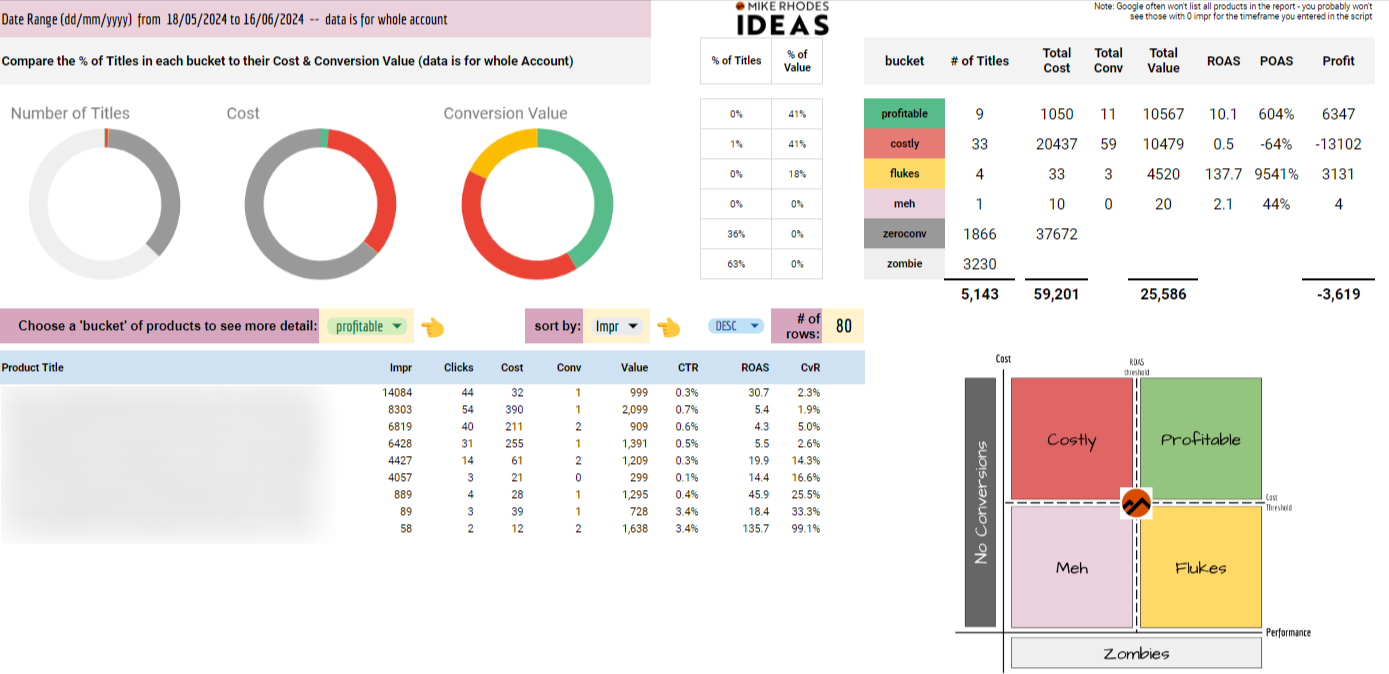
3. How our products are performing and labeled: Analyze which products are profitable, costly, flukes, and poor performers to see where you have good results and can infiltrate the marketplace.
4. Analyze which graphics, videos, headlines, and descriptions perform best: View key metrics for all creative assets to see what content drives the most engagement from your audience and the percent breakdown between automatically generated assets and advertiser-provided assets.